Installing the Avantra Agent
Before you start an Avantra installation, read the release notes and use the latest software versions and patches from Avantra.
The installation of the Avantra Agent is not a complicated task to complete as the agent is designed to be light weight and require minimal dependencies.
Dependencies
Before you install your Avantra Agent (on any platform) there are two main dependencies to check:
Java Runtime
Avantra is a Java application and so requires a valid runtime environment to function. This is the case for both the Avantra Server runtime as well as the Avantra Agent runtime however the JRE requirements for each may differ slightly. Avantra recommends the use of the Temurin JRE as provided by Adoptium from the Eclipse foundation (formerly known as Adopt OpenJDK) and this is the JRE upon which we perform our own mass testing.
As of Avantra 26.0, the Avantra Server requires Java 25 and Avantra Agents require Java 21. Before performing any upgrades, ensure your Java runtime is at the latest patch version for your release.
JRE for Avantra Server
For the Avantra Server, the required Java runtime version depends on your Avantra Server version. During the installation you can provide the location of your desired JRE or else the installer will attempt to detect a valid JRE installation.
Supported JRE versions for Avantra Server
| Server Version | JRE 8 | JRE 17 | JRE 25 |
|---|---|---|---|
| 23.x and below | YES | NO | NO |
| 24.x up to 25.x | NO | YES | NO |
| 26.0 and above | NO | NO | YES |
JRE for Avantra Agent
The required Java runtime version for the Avantra Agent depends on your agent version. From Avantra 26.0, agents require Java 21.
Supported JRE versions for Avantra agents
| Agent Version | JRE 8 | JRE 17 | JRE 21 |
|---|---|---|---|
| 23.2.x and below | YES | NO | NO |
| 23.3.x up to 23.9.x | YES | YES | NO |
| 24.x up to 25.2.x | NO | YES | NO |
| 25.3 | NO | YES | YES |
| 26.0 and above | NO | NO | YES |
Upgrade path to Java 21 for Avantra Agents
Customers upgrading their existing installations from an earlier version are advised to follow this procedure:
- Bring your Avantra Server up to a minimum of version 25.3.
- Bring all agents up to a minimum version of 25.3 using the built-in Agent Updates feature in the Administration menu.
- Upload a Java 21 runtime into Avantra Server under Administration - Agent Updates in the new tab Java Packages.
- Start by upgrade ONE (1) agent of a non-critical system to use the new Java 21 runtime by going to the Status tab and selecting Select systems for a Java update, select your system and select the new JRE you have just uploaded.
- Once the Java update has completed successfully and the agent is functioning correctly (wait 15 minutes for all cycles to complete or force a full check cycle). Make sure to check within Avantra that the server is showing as running under Java 21 within 15 minutes of the update.
- Once you have successfully upgraded one agent, you can proceed to upgrade more. We recommend doing these in increasing buckets of agents in case you run into issues. For example, if you have 100 agents to upgrade then follow this approach:
- 1 agent to check the process
- 4 agents to verify the process
- 15 agents
- 30 agents
- 50 agents
Your Java runtime can either be installed system-wide for all applications to use or you can specify a Java location that is non-standard for your Avantra Agent process to use. This is particularly useful when working on a system that already has a version of Java in-place that is not compatible for running Avantra.
Verify network connectivity
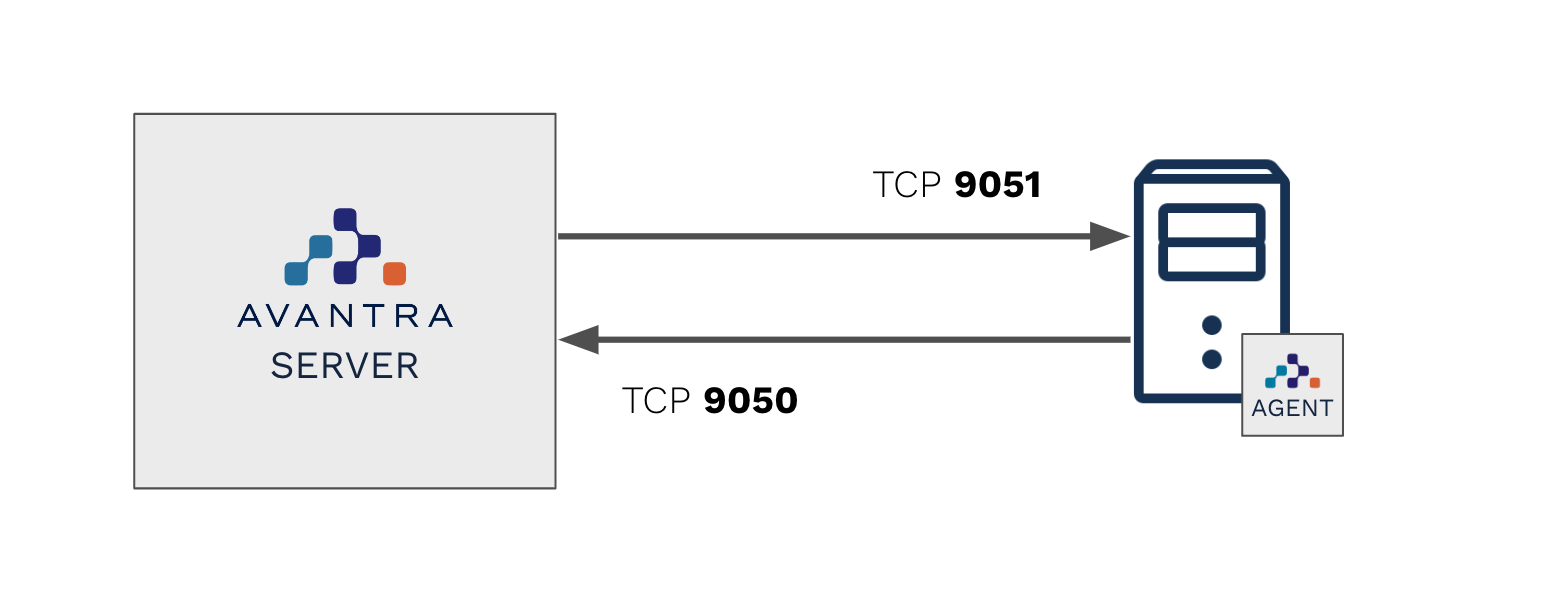
By default, the Avantra Agent contacts the Avantra Server on TCP port 9050. The other way round, the Avantra Server connects to the Avantra Agent on TCP Port 9051 (unless you have changed either of these in your environment).
Before starting your installation on the remote server to be monitored, we suggest verifying the connectivity from the Avantra Agent to the Avantra Server. For example, you can use `telnet`` as follows:
telnet <your-avantra-hostanme> 9050
Trying 192.168.27.5...
Connected to <your-avantra-hostanme>.
Escape character is '^]'.
hello
You have reached Avantra Server version 23.2.0 (Build:1106-fc922) running on <your-avantra-hostanme>
Good bye.Connection closed by foreign host.
Once the connection was established in the example above, we typed the word hello to verify that we were connected to the right server. All Avantra network services will introduce themselves in this way when sent a hello command and this is useful for verification.
The telnet tool will report an error if a connection cannot be established.
If network restrictions are in place on your network, contact your network staff to enable the communication in both directions, from the Avantra Agent to Avantra Server on port 9050, and the other direction on port 9051.