SAP Instance - Custom Checks
Here you will find detailed information about Custom Checks for SAP Instance monitored objects.
Custom checks are chosen, adapted and deployed by you for one or more monitored objects and they are designed to allow quick and easy fulfilling of business monitoring requirements. Avantra custom checks are a mix of no-code, low-code and pro-code extensions to the Avantra AIOps platform. Each monitored object type has many custom check capabilities.
All custom checks within Avantra have some standard or common attributes. For more information please review our page on Custom Checks.
ACTIVE_USERS
This Custom Check allows monitoring the number of active (i.e. logged-in) users of an SAP Instance. It can be used for SAP ABAP and Java instances. This check might be useful as input for cloud management functions.
Configuration
Warning Check Status if active users are more than Please enter the active user count to be used as the Warning threshold
Critical Check Status if active users are more than Please enter the active user count to be used as the Critical threshold
Reference Data
| Managed Object | Dynamic Group or Static Group of SAP Instances |
| Depends on | RFCCONNECT |
CCMS
You can use this Custom Check to integrate Avantra with the SAP CCMS.
Configuration
- Monitor Tree Element
In order to find the appropriate values for this field, log into your SAP System and proceed to transactionRZ20.
You will see a list of CCMS monitor sets. Select SAP CCMS Monitor Templates, and double-click on one of the templates. Proceed to the Monitoring Tree you want to have checked and choose Properties.
Copy the value of the Properties of field in the SAP GUI and paste it into the Monitor Tree Element field in the Avantra WebUI.
Finally, replace every occurrence of Real SAP SID and the SAP Instance name in the string with the keywords<SID>and<INSTANCE>. - Report CCMS alerts of this MTE to Avantra
If this flag is set the Avantra Agent automatically confirms the CCMS Alerts corresponding to the Monitoring Tree Element and imports them into Avantra where they can be viewed using Avantra WebUI. - Avantra status is
Choose the check status Avantra is to display in case the SAP status is eitherunknownorinvalid.
Reference Data
| Managed Object | Dynamic Group or Static Group of SAP Instances, SAP Systems |
| Depends on | RFCCONNECT |
FILE_CONTENT
The FILE_CONTENT custom check uses the Avantra Agent to check if a given file exists, is up to date and confirms the contents of the file. If it does not exist, the check status is set to Critical. If it exists the file's last modification time is verified and can define a Critical threshold. If the file is reasonably new, the content of the file is read. The first line must contain the keywords UNKNOWN, OK, WARNING, CRITICAL, or the corresponding numerical values -1, 0, 1, 2 and this value is returned as check status. The remaining lines of the file form the check message.
Configuration
- Check File
Define the absolute path name of the file monitored in this field. File name substitution is provided in case wildcard characters (like
*or?) are used.
For the sake of stability and sanity of the monitoring process wildcards are only allowed to be used in the file name part of the Check File Definition, but not in the directory part. If you want to check for the existence of multiple files in separate directories, you may use the RUN_PROG Custom Check and tools likefind(on Unix-like operating systems) ordir /s(on Microsoft Windows operating systems).
This field features Custom Check Macros and Custom Monitoring Parameters.
- Critical Alert if File is older than Define a Critical threshold.
Reference Data
| Managed Object | Dynamic Group or Static Group of Servers, SAP Instances, SAP Systems, standalone Databases |
| Depends on | AGENTALIVE |
FILE_EXISTS
The Avantra Agent checks if a given file exists. You can define the check status to report in case the file does or does not exist, e.g. an OK if the file exists and a Critical otherwise.
Configuration
- Check File
Define the absolute path name of the file monitored in this field. File name substitution is provided in case wildcard characters (like*or?) are used.
For the sake of stability and sanity of the monitoring process wildcards are only allowed to be used in the file name part of the Check File Definition, but not in the directory part. If you want to check for the existence of multiple files in separate directories, you may use the RUN_PROG Custom Check and tools likefind(on Unix-like operating systems) ordir /s(on Microsoft Windows operating systems).
This field features Custom Check Macros and Custom Monitoring Parameters.
- Check Status if File Exists
Define the check status to be returned if the file exists. - Else
Define the check status to be returned if the file does not exist.
Reference Data
| Managed Object | Dynamic Group or Static Group of Servers, SAP Instances, SAP Systems, standalone Databases |
| Depends on | AGENTALIVE |
FILE_UPTODATE
The FILE_UPTODATE custom check uses the Avantra Agent to check if a given file both exists and verifies the last modification date. If the file does not exist, the check status is set to Critical. If it exists the file's last modification time is verified. You can define Warning and Critical thresholds.
Configuration
- Check File
Define the absolute path name of the file monitored in this field. File name substitution is provided in case wildcard characters (like*or?) are used.
For the sake of stability and sanity of the monitoring process wildcards are only allowed to be used in the file name part of the Check File Definition, but not in the directory part. If you want to check for the existence of multiple files in separate directories, you may use the RUN_PROG Custom Check and tools likefind(on Unix-like operating systems) ordir /s(on Microsoft Windows operating systems).
This field features Custom Check Macros and Custom Monitoring Parameters.
Reference Data
| Managed Object | Dynamic Group or Static Group of Servers, SAP Instances, SAP Systems, standalone Databases |
| Depends on | AGENTALIVE |
FILESYSTEMS
This custom check works exactly the same as the built-in Check FILESYSTEMS but checks only customer-specified file systems. This custom check is intended for users, who want to check certain file systems independently from others, e.gto provide individual notifications to owners of a particular file system. This custom check type is not intended to replace the native FILESYSTEMS check. However, differently from the native check, it can be applied to all types of monitored objects, e.g. SAP Instances and SAP Systems.
Configuration
- File System
Specify the file systems to be included. Wildcards*and?are supported. - Usage
Specify the thresholds, see FSUsageCrit and FSUsageWarn. For Unix, you can as well define thresholds for the inodes, see FSNodeCrit and FSNodeWarn. - Nodes
Specify the thresholds for monitoring the inodes on Unix, see FSNodeCrit and FSNodeWarn.
Reference Data
| Managed System | Dynamic Group or Static Group of Servers, SAP Instances, SAP Systems, standalone Databases |
| Depends on | AGENTALIVE |
HTTP_RESPONSE
The HTTP_RESPONSE check allows you to:
- Verify if a certain website is reachable (i.e. if a certain URL can be accessed and an HTTP 200 OK response is returned),
- Measure web page response times against Warning and Critical thresholds,
- Verify if the retrieved web page contains a certain content.
The HTTP_RESPONSE check supports the following HTTP/1.1 methods:
- HEAD
Performs an HTTP HEAD request, i.e. only the header of the response will be retrieved.
This is usually sufficient if you only want to know if there is any response for a given URL - GET
Performs an HTTP GET request. Basic Authentication is supported as well. - POST
Performs an HTTP POST request. HTML Form data can be provided URL-encoded.
HTTP_RESPONSE also supports the HTTPS protocol scheme, specifically HTTP over TLS.
In case the Avantra Agent cannot connect to the site, or the site returns a status code different from the 200 OK response, the Check turns to Warning until the number of failed consecutive connection attempts reaches the value defined in status turns to Critical after n successive connection failures. Afterwards, the Check turns to Critical.
If the site returns a 200 OK response and there is a value defined in Content must contain string field, the Avantra Agent verifies if the defined string is contained in the HTTP response. If so, the Check returns the check status defined in check status if the string is found otherwise the check turns to the value defined in check status if the string is not found.
If there are response time thresholds defined in the fields Warning alert if response time exceeds and Critical alert if response time exceeds, the response time of the site is compared to these values and the Check returns a corresponding Ok, Warning, or Critical check status.
You can also check if the SSL certificate for the server is valid and generate a Warning or Critical check status if it's about to expire. Of course, this works only if you use HTTPS in the URL.
Configuration
- URL
The URL of the site you want to verify.
This field features Custom Check Macros and Custom Monitoring Parameters.
- Evaluate JavaScript
Set this flag if you want to interpret JavaScript eventually returned with the response.
Only set this flag if you really require JavaScript evaluation. It may be expensive in terms of execution time and memory usage.
- Proxy URL
If you need to define a proxy server in order to access the site defined in the URL field you may fill in this value.
This field features Custom Check Macros and Custom Monitoring Parameters.
- User Agent String
By default, the Avantra Agent uses the string agent/(version) in order to identify as a user agent. Some web servers may restrict access to certain browsers, like the Microsoft Internet Explorer or Mozilla Firefox, or they behave differently using one of these browsers.
If you experience problems with pages you can open with your browser, but HTTP_RESPONSE returns e.g. an HTTP Server Error 5xx code, you may try to set a different value for the user agent in this field. - Method
ChooseHEADorGETorPOST. - Basic Authentication Credentials
In case you have chosenGETin the Method field you may fill in a user name and a password in this field if Basic Authentication is required by the requested URL.
This field features Custom Check Macros and Custom Monitoring Parameters.
- Post Form Data
In case you have chosen POST in the Method field, you have to fill in the form data in URL-encoded format.
This field features Custom Check Macros and Custom Monitoring Parameters.
-
Time Out
You may define a value for the connection timeout. The default is 10 seconds. Please note: This is a timeout for the sub-process spawned to perform the connection attempt. The timeout for the HTTP request itself will always be 80% of the defined value. -
Status turns to CRITICAL after n successive connection failures
If filled with a value > 1, all consecutive failed connection attempts will return a Warning check status until the threshold is exceeded. The Check turns to Critical afterwards. -
Content must contain string
You can filter the response for one or multiple strings by filling in data in this field.
If you fill in multiple strings (separated by blanks), they are treated like combined by aLogical OR, i.e. it's sufficient if one of the strings is found in the result. Therefore, in order to search for a string containing blanks, use the wildcard * instead of the blank. The same must be used to require multiple strings (in that order) to be contained in the result.
The HTTP header is also considered part of the result, so this option is also available for the HEAD method, although of limited use.
You can define the check status returned in case the string is or is not found using the fields check status if the string is found and Check status if the string is not found.
This field features Custom Check Macros and Custom Monitoring Parameters.
- Check status if the string is not found
If there is a value defined in the Content must contain string and the string is not found in the response, this check status is returned. - Check status if the string is found
If there is a value defined in the Content must contain string and the string is found in the response, this check status is returned. - Warning alert if response time exceeds
Fill in a Warning threshold for the response time. - Critical alert if response time exceeds
Fill in a Critical threshold for the response time. - Warning Status if SSL certificate expires within
Fill in a Warning threshold if the check shall verify SSL certificate expiry time. - Warning Status if SSL certificate expires within
Fill in a Critical threshold if the check shall verify SSL certificate expiry time. - Status if SSL certificate is invalid
Select the check status to return in case an SSL certificate is invalid.
Reference Data
| Managed Object | Dynamic Group or Static Group of Servers, SAP Instances, SAP Systems, standalone Databases |
| Depends on | AGENTALIVE |
J2EE_COMPONENT_STATUS
This Custom Check is designed for an SAP Instance and allows you to check the status of arbitrary SAP NetWeaver Applications and Services and map the findings to an Avantra check status. With this check, you can check for the status of a single component, a set of components, or all components.
This Check is only supported for SAP Web Application Server Java 7.11 or higher. Additionally, SAPControl access must be configured for the corresponding SAP System.
Configuration
- Component Type
This parameter defines the component type the mapping shall be applied to.Application: Only Application components are mapped.Service: Only Service components are mapped.*: All types of components are mapped.
- Name Pattern
Specify the Name Pattern for the components to be mapped. You may enter an exact name, a name with wildcards (? for a single-character wildcard, * for a multiple-character wildcard), or a regex. For a regex, you'll have to provide '/' at the beginning and at the end of the expression. Regex mapping will always be case insensitive. - Status List
Specify a list of status names to be mapped, separated by commas. The status names correspond directly to the data retrieved from the SAP Control interface, usually, the following status names are available:running,stopped,failed,starting,stopping.
You may leave the field blank or enter an asterisk ('*') to map all statuses. This can be used to check for the presence of a component. - If Matches
Select the sub Status for the entry if the mapping matches.
The worst status found will define the overall check result. - Else
Select the sub Status for the entry if the mapping doesn't match.
The worst status found will define the overall check result.
Reference Data
| Managed Object | Dynamic Group or Static Group of SAP Instances |
| Depends on | J2EECONNECT |
J2EE_JMX_MON
This Custom Check enables you to access and monitor objects in the Monitor Tree of your SAP WebAS Java in a very flexible manner. By simply specifying the path of a Monitor Name in the Monitor Tree, you can access any of its monitor values. The check supports comparisons of the monitor values against selectable thresholds, so there is no need to alter the monitor thresholds in the Monitor Tree. With this check, you can access monitoring data from any monitor object (JMX Monitor MBean in Java speak) you are interested in. If an application running on SAP WebAS Java features Monitor MBeans, you will be able to integrate associated checks easily in Avantra using this Custom Check.
This Check is only supported for SAP Web Application Server Java 6.40 or higher.
Configuration
- MBean path
This path defines the Monitor MBean you want to access. Use one of the following methods to retrieve the Monitor MBean path:- Open the
SAP NetWeaver Administrator, choose Java System Reports, and select Monitor Browser from the Report field. In the Monitoring Tree, choose the monitor in question. - Start the
Visual Administrator, select the Services branch on the cluster and node your target Monitor MBean resides on, and click on the Monitoring service entry. In the tree choose the monitor in question.
The following placeholders are supported:<SID>,<sid>,<Sid>: Real SAP SID (all uppercase, all lowercase, unmodified)<HOST>,<host>,<Host>: Hostname of the hosting Server without domain (all uppercase, all lowercase, unmodified)<HOSTDOMAIN>,<hostdomain>,<Hostdomain>: Hostname of the hosting Server with domain (all uppercase, all lowercase, unmodified)<DBTYPE>,<dbtype>,<Dbtype>: Database Type (ADA, ORA, etc.) (all uppercase, all lowercase, unmodified)
- Open the
If you specify the placeholder names in uppercase letters, the replacement string will be transformed to uppercase. If you specify them in lowercase letters, the replacement string will correspondingly be transformed to lowercase. Finally, if you specify the macro name with the first letter capitalized, the replacement string will remain as provided by the system.
- Node type
Specify the node type this check should be applied to. There are many MBeans with the same path for server and dispatcher nodes, but some MBeans exist only for server nodes and vice-versa. There are even MBeans that exist for both node types but are registered under a different path (like for example/Services/Memory Info/UsedMemoryon a dispatcher node and/Services/Memory/UsedMemoryon a server node).
The Check will be applied to each node that matches your Node type selection, i.e. if an affected SAP Instance contains a dispatcher node and two server nodes, and you choose Both, the check will be executed once for each of those nodes. - Monitor Type
Select the monitor type. In the Visual Administrator, you can find this value in the Type field of the Monitor Configuration dialog window for the selected monitor object. Apparently, there is no equivalent information in the SAP NetWeaver Administrator, so you probably have to perform educated guessing based on the information provided in the Value field. - Monitor Value
The available options for this field depend on the value selected in Monitor Type. Choose the one of your interest. There are some special cases if the selected value in Monitor Type is Table Monitor or Configuration Monitor.- If the selected Monitor Type is a Configuration Monitor, you must specify the configuration table cell where the value of interest resides.
This is done by specifying the matching Row Label as found in the first column of the configuration table, and the matching Column starting from 0 (0 corresponds to the label column). Usually, the wanted column will be the one with the number 1. - If the selected Monitor Type is a Table Monitor, you must specify the table cell where the value of interest can be found. This can be done in two ways:
- Select labeled cell content to choose the cell of interest analogous to the row label/column number scheme for Configuration Monitors.
- Select row/column cell content to indicate a row and column number for the target cell and fill in Row and Column.
- If the selected Monitor Type is a Configuration Monitor, you must specify the configuration table cell where the value of interest resides.
- Row Label
See the description of Monitor Value. - Row
See the description of Monitor Value. - Column
See the description of Monitor Value. - Warning threshold
Specify a Warning threshold and the desired comparison operator.
A value that matches the resulting condition will issue a Warning Check Result if the condition is fulfilled and a Critical condition is not fulfilled. - Critical threshold
Specify a Critical threshold and the desired comparison operator.
A value that matches the resulting condition will issue a Critical Check Result regardless of the Warning threshold. - Avantra status is
Choose the check status Avantra is to display in case the SAP status is eitherunknownorinvalid.
LOG_ADAPTER
LOG_ADAPTER allows you to monitor textual log files as well as Microsoft Windows EventLogs. It is based on pre-defined or self-defined Log Adapters, which provide log entries of arbitrary log sources as an array of standardized sets of key-value pairs. Using those key-value pairs as Macros in conditional Expressions, LOG_ADAPTER allows you to define conditions to trigger Check Results. LOG_ADAPTER supports logs spread over multiple log files as well as cyclic log files.
Configuration
Log Adapter Type The type of a Log Adapter.
- Log Adapter
Select your desired Log Adapter. As soon as you have selected a Log Adapter, the available Macros are loaded and the Expression Editors in various fields are initialized.
A click on theiicon provides additional data about the Macros provided by the selected Log Adapter.
Avantra automatically detects the encoding of the file. If it fails, use the Log File Encoding setting to specify the file encoding manually.
- Log File Path Pattern
If you have selected File Adapter in Log Adapter Type you have to fill in this value, which indicates the path and file name of the target log files.
This field features Custom Check Macros and Custom Monitoring Parameters.
LOG_ADAPTER supports logs spread over multiple log files as well as cyclic log files. In order to identify the log files belonging to a scenario, LOG_ADAPTER features a flexible log file path pattern interpreter.
In order to best use the log adapter, you must understand how log files are written by your application.
Typical applications write log files until a specific size is reached and then start writing to a new log file. What happens to the old log file depends on your application and is not standardized. Most applications write log files with one of the following procedures. Use the corresponding values for the Log File Path Pattern.
| Log Rotation Scenario | Configuration Instructions |
|---|---|
| The current log file where the application writes into it has always the same and unique name. When this file reaches the size limit, the log file is renamed (or moved) and gets a new name. The new name typically contains an ascending number or a timestamp to uniquely identify this file. After that, a new file is created with the same name again and the application writes into the new log file. | Define the Log File Path with the exact name of the log file. Do not use wildcards. Do NOT define the Archived Log File Path. Avantra finds old (or rotated) files with the unique file ID (inode). |
| The current log file where the application writes into has a unique name. When the log file reaches the size limit, a new log file is created with a new unique name and the application writes into the new log file. The old log file is not touched anymore. With this approach, each log file has a unique name which is typically an ascending number or a timestamp. Since the file name is not known in advance, you must use wildcards to identify this file. | Define the Log File Path using wildcards to identify the file. Define the path as exact as possible. If old files have a different name pattern, also define the Archived Log File Path (with wildcards). |
| Similar to the first, but the log file is not renamed (or moved) but copied to a new file (or new location). A new file is created with the same name and the application starts to write into the new file. When a file is copied, it gets a new name and a new file ID (inodes). | Define the Log File Path with the name of the file. You can use wildcards if necessary. You must also define the Archived Log File Path to find the old file. Use wildcards if necessary. Make sure the path in Log File Path does not match rotated files and that the Archived Log File Path does not match the current file. |
Your application does not have a limit to the log file size. It always writes to the same log file. (If the log file is getting too big, this is another issue that is not covered in LOG_ADAPTER.) | Define the Log File Path with the exact name of the log file. You can use wildcards if necessary. |
If you do not know exactly how your application writes log files, perform the following:
- Define the Log File Path with the name of the file. You can use wildcards if necessary.
- Also, define the Archived Log File Path with the name of the archived file. You can use wildcards if necessary.
You may use the following utilities and shortcuts to define general file patterns:
- Use the
 to view and insert available Custom Check Macros to generalize your path pattern for different system environments.
 - Use wildcard characters for single (
?) and multiple (\*) characters to match multiple log file names. These wildcard characters are only supported in the file names, not in the directory parts. - If you use wildcards, LOG_ADAPTER will determine the latest file matching the wildcards in every read operation. It will only monitor this single file. If your wildcard definition matches multiple files that are not written in chronological order, the LOG_ADAPTER Custom Check may read data from different files over time, depending on which file was updated last. The result is most likely not what you expect, and the check will return a Warning
Context lostCheck Result from time to time.
Use the slash key (/) instead of backslash (\) as file separator on Microsoft Windows and Unix operating systems for platform-independent path definitions.
- Archived Log File Path
See Log File Path Pattern. - Log Adapter Processing
This setting defines which entries of the log files are to be processed. Log entries written since last check cycle processes all log entries that have been added after the last read of the file. Log entries written in last x minutes reads all entries that have been added during the past Log Entry Timespan minutes.
Using Log entries written in last x minutes requires that you have defined a Log Adapter that contains timestamps in a way that the Avantra Agent is able to read and understand. If your log file does not provide reasonable timestamp information, choose Log entries written since last check cycle instead.
This parameter, together with the execution cycle, has a direct impact on the duration a LOG_ADAPTER alert is visible in the RealTime Monitoring. The time you indicate in Check Result is visible in the RealTime Monitoring.
When you select Log entries written since last check cycle, the alert will be visible for Log entries written since last check cycle * execution cycle minutes.
- Log Entry Timespan
Fill in the period of time the Avantra Agent should look back while processing the log file if Log entries written in last x minutes is selected in Log Adapter Processing. - Warning Condition
Define a conditional expression that indicates log entries considered as Warning. - Critical Condition
Define a conditional expression that indicates log entries considered as Critical.
A Critical match will override Warning matches in terms of the check status. The check message will also be overridden unless you select All matching log entries in Create Message For. - Match Counter Threshold
In the Warning Trigger section, this value defines how many entries must be matched to the condition before the check status will be set as Warning. I.e. if there are only 2 entries matching and this value is set to 3, then the check status will be OK. If there are 3 or more entries matching, then the check status will be set as Warning.
In the Critical Trigger section, this value defines how many entries must be matched to the condition before the check status will be set as Critical. I.e. if there are only 2 entries matching and this value is set to 3, then the check status will be OK. If there are 3 or more entries matching, then the check status will be set as Critical. - Resolution Condition
Define a conditional expression that indicates log entries that resolve issues found using Warning Condition or Critical Condition. - Create Message For
You can specify the format of the check message shown in RealTime Monitoring or used in Notifications.
The message format has a static header that indicates which and how many of the trigger conditions have matched, followed by optional information on the matching log entries.
You may choose between the listed formats. For the detailed layout of the display of log entries, see also Message Format.
| Log Entry | Details |
|---|---|
| No log entry | No details of matched log entries are shown. |
| First matching log entry | Details of the first matching log entry are shown. |
| Last matching log entry | Details of the last matching log entry are shown. |
| All matching log entries | Details of all matching log entries are shown. |
- Message Format
Define the display of a matched log entry in the check message. You may enter arbitrary text tokens in the field, and you may use all Macros available for the selected Log Adapter (using the icon) to build a meaningful description text.
Reference Data
| Managed Object | Dynamic Group or Static Group of Servers, SAP Instances, SAP Systems, standalone Databases |
| Depends on | AGENTALIVE |
NW_RESPONSE
NW_RESPONSE is designed to monitor the availability and response time of a remote host. It sends a configurable number of ICMP echo request packets to a given host, receives the ICMP echo replies, and calculates packet loss as well as packet round-trip-time, i.e. the check virtually does what the ping operating system command does.
You have the option to define packet loss thresholds; if there is no packet loss, the network round-trip-time can be compared to corresponding response time thresholds in order to generate Warning or Critical Check Results.
It is characteristic of the ICMP protocol to require administrative permissions in order to generate ICMP echo requests. On Microsoft Windows operating systems the permissions the Avantra Agent runs with (as a service) are usually sufficient. On Unix-like operating systems the Avantra Agent would need to run as user root to execute NW_RESPONSE. This is generally not recommended. If you want to use this feature, it's recommended to run it on a Microsoft Windows host.
Configuration
Host Name or IP Address Fill in the host name or the IP address of the remote host.
This field features Custom Check Macros and Custom Monitoring Parameters.
- Packet Loss Warning Threshold
Define a Warning threshold for packet loss. - Packet Loss Critical Threshold
Define a Critical threshold for packet loss. - Average RTT Warning Threshold
Define a Warning threshold for the average round-trip time. - Average RTT Warning Threshold
Define a Critical threshold for the average round-trip time. - Timeout
Define a time out for the Check. The check status will be Critical if the time out is exceeded. - Number of Packets
Define the number of ICMP packets to send per Check - Packet Size
Define the size of ICMP echo request packets
Reference Data
| Managed Object | Dynamic Group or Static Group of Servers, SAP Instances, SAP Systems, standalone Databases |
| Depends on | AGENTALIVE |
PARAMETER_VALUES
This custom check allows you to verify the actual value of an SAP instance profile parameter, a Java system property (properties of Services and Managers), or a database parameter against a given value. For example, it might be required that some parameters have a certain setting for security or compliance reasons, so you might want to monitor this.
To be able to check profile parameters of non-ABAP SAP Instances, the SAPControl user must be maintained. See Defining the SAPControl User on how to do this.
To check SAP profile parameters, you must select SAP Instances.
For database parameters, you can choose between Database for standalone database or SAP Systems for underlying database.
The check result depends on the setting of If value does not match alert as.
If multiple parameters are checked, the worst status of all will be the total status of the check.
Configuration
- Type of System Configuration
The type of system configuration to be verified, either Profile Parameter for parameters found in an SAP instance profile, or Java Service Property for parameters of Services and Managers found in the section Java System Properties of the SAP NetWeaver Administrator.
For SAP Systems or Databases, there is only one option Database Parameter. - Parameter Name
The name of the profile parameter, you want to verify the value of. Examples in the security area of an ABAP instance arelogin/no_automatic_user_sapstaror in the compliance area rec/client.
Java system properties are also specified in one string and follow the syntaxService Component Name/Property. For properties of Managers, you simply replace theService Component Namewith the name of the manager. Examples in the security area of a Java instance arecom.sap.security.core.ume.service/ume.logon.security_policy.password_min_lengthorSessionManager/session.invalidation.timeout.
For database parameters of a DB2 database, you must prependDBM. for the parameters of the database manager, andSID. for parameters of the database itself.
To specify the database parameters of a HANA database, parameter names are combined using the schemesection.key, e.g.persistance.trace. Furthermore, you can query for parameters of a certain host by using the host keyword, e.g.host=thehanahost;persistance.trace. You can also query the parameters by the file, the layer or by the tenant.
Examples:file=global.ini;persistance.trace,layer=SYSTEM;persistance.traceortenant=xy;persistance.trace. - Operator
The operator used to compare the actual value against the given value. You can choose from a variety of text and numerical operators, a between operator, and regular expressions. If you use numerical operators, the given value and the actual value will be checked if they look like a number. A wide range of numerical notations is supported, integers, floating point, scientific. The between operator will evaluate to true, when the actual value is inclusively between the two given values.
The parameterrsau/enablemay have the following values:TRUE, FALSE, 0, 1, ON, OFF, YES, NOwhich are not case-sensitive.
In order to verify if Security Audit is enabled, you would configure:
| Parameter Name | rsau/enable |
| Operator | =~ (regex) |
| Parameter Value | |^TRUE$|^1$|^ON$|^YES$/i |
- Parameter Value
The given value of the profile parameter, i.e. the value the monitoring parameter should have. This value will be compared against the actual value. The actual value is retrieved by RFC using a kernel function, so no matter if it's defined in the default or instance profile, the actual effective value will be used.
You can specify SAP profile-specific placeholders, e.g.$(SAPGLOBALHOST). The agent will replace them with the actual value prior to the comparison with the actual value of the Parameter Name. This way the scope of one custom check definition can be used for more than one system. - Tag
Free text field to add a custom reference which will appear in the check output. This might be useful in Service Level Reports to document a certain paragraph or the like. - If value does not match alert as
Select the status, in case the parameter actual value does not match the given value, either Warning or Critical. - If parameter does not exist alert as
Select the status, in case the parameter actual value does not exist, either OK, Warning or Critical. - If values is null alert as
Select the status, in case the parameter actual value is the null value, either OK, Warning or Critical.
Reference Data
| Managed System | Dynamic Group or Static Group of SAP Instances, SAP Systems, Databases |
| Depends on | RFCCONNECT, J2EECONNECT, or DBCONNECT (depends on Custom Check scope) |
PROCESS
PROCESS can monitor whether or not a configurable number of processes sharing the same process name are running.
The Check is available on Unix-like operating systems and on Microsoft Windows operating systems. However, it might more useful on a Unix host.
You can define minimum and maximum Warning and Critical thresholds for the number of instances of the process in question.
Configuration
- Process Name
Enter the name of the process you want to monitor.
On Unix-like operating systems, fill in the process' simple command name, i.e. the process' executable name without any arguments. The simple command name is the value displayed by the -o comm option in the POSIX version of the ps command. See also man ps on your system.
Also, on Unix-like operating systems, if a simple command name is not sufficient (like in Java applications), you can also define a name to match (a substring of) the process' command line call. The command line call is the value displayed by the -o args option in the POSIX version of the ps command. See also man ps on your system. Please note that this value may be limited to 256 characters on some systems.
If you prefer this option, make sure you set the flag Match process name in process table....
On Microsoft Windows operating systems enter the process name (as shown in the Processes tab of the Task Manager), but without the trailing.exe.
This field features Custom Check Macros and Custom Monitoring Parameters.
- Critical alert if number of processes is lower than
If the number of running processes falls below this threshold, a Critical check status is returned. - Warning alert if number of processes is lower than
If the number of running processes falls below this value, but does not exceed the value defined in Critical alert if number of processes is lower than, a Warning check status is returned.
If the field is left blank, no Warning check status is returned at all.
If the value in this field is less than the one defined in Critical alert if number of processes is lower than, the latter value will be ignored. This method can be used to receive only Warning but no Critical Check Results. - Warning alert if number of processes is higher than
If the number of running processes exceeds this threshold, but is still below the value defined in Critical alert if number of processes is higher than, a Warning check status is returned.
If the field is left blank, no Warning Check Results are returned at all.
If the value in this field is higher than the one defined in Critical alert if number of processes is higher than, the latter value will be ignored. This method can be used to receive only Warning but no Critical Check Results. - Critical alert if number of processes is higher than If the number of running processes exceeds this threshold, a Critical check status is returned. If the field is left blank, no Critical Check Results will be returned.
Reference Data
| Managed Object | Dynamic Group or Static Group of Servers, SAP Instances, SAP Systems, standalone Databases |
| Depends on | AGENTALIVE |
RUN_JS
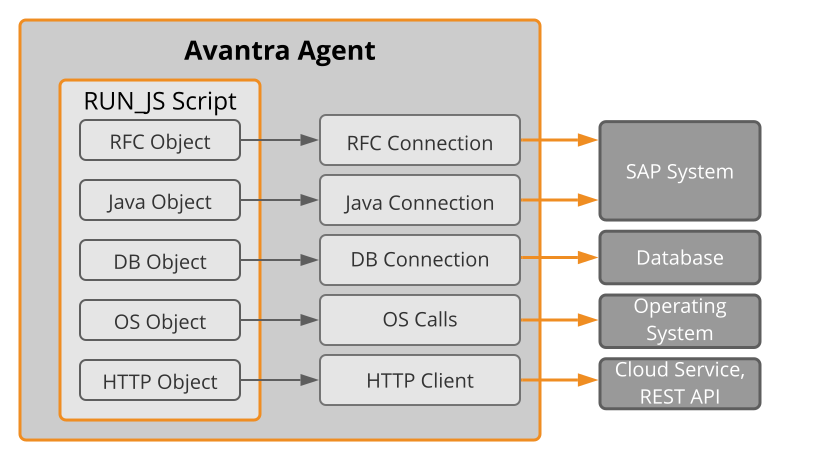
RUN_JS is a very powerful Custom Check type, which combines several different ways to retrieve data and evaluate the results using JavaScript. RUN_JS can easily access ready-to-use objects. For example, established RFC connections to SAP ABAP systems, established database connections, an OS object to run commands, or make HTTP requests to Cloud Services. This custom check type can be used to generate comprehensive check results, including sortable tables, that can even combine different sources of data retrieval.
The RUN_JS custom check is a very powerful tool. Data retrieval by RFC, SQL, OS, or HTTP is executed using the permissions you have provided for the corresponding user. You can gain access to sensitive data if RFC, database, or OS user permissions are not restricted. Use this custom check at your own risk. Avantra shall not be liable for any direct, indirect, special, incidental, or consequential damages arising from the use of this custom check. Nor can we provide any support for designing data retrieval and writing evaluation scripts.
The RUN_JS custom check supports ECMAScript 2019 for Avantra Agents 20.11 and higher and ECMAScript 5.1 for older versions.
Additionally, this custom check type depends on the global Avantra server setting Security.EnableOSCodeExec.
The check evaluation logic is provided by a (usually small) JavaScript program. This script can access objects which are provided by the Avantra Agent, so the programmer can focus on the check logic and not worry about establishing connections, etc.
To script the evaluation logic, users of this check type need to be familiar with the built-in variables and API to use them, as described in the API Documentation.
The RUN_JS custom check can be created for any monitored object type, however, certain built-in variables are only available in the context of the corresponding system type, i. e. an RFC connection to an ABAP system is only available in the context of SAP systems and SAP instances.
Apart from the examples provided in the API Documentation, see the Avantra Solution Document RUN_JS custom check example, which contains ready-to-use examples to download.
You need a Java Virtual Machine 1.8.0_65 or higher in order to make use of all functions of this Check.
Configuration
-
Script
The JavaScript program providing the check data retrieval and evaluation logic. See section API Documentation. -
Script timeout
Define a time values, in seconds, for the timeout of the script. If no value is defined, the default cycle time is used as for the timeout. -
Return Timeout as
If a timeout occurs, defined how the timeout is reported. Select from OK, WARNING, CRITICAL, UNKNOWN. blank is the default state of the dropdown as shouldn't be used. -
Report Execution Time
If this option is enabled, the time to run the script is appended to the check result text. This might be useful to check if the performance of a script is good. -
Execute Test Run
Starting with Avantra Version 21.11, you can run tests for newly created RUN_JS checks on the selected Agent directly from the Avantra WebUI. This feature does not require saving or activating the check, i.e. it can be tested before affecting the execution of the check on other systems.
To test your check code:
- After modifying your script in the Script field, click Execute test run under the check name at the top of the dialogue box.
- Select one or multiple system to test the check on and click Test to run your script directly on those selected systems.
Although this is a testing tool, the script will execute on the systems in the same way it does in a real check execution. If the check has any side effects then these will also happen in test mode.
This feature can be disabled by the Security.RUNJSEnableTestExecution setting in your Avantra Server.
Reference Data
| Managed Object | Dynamic Group or Static Group of Servers, SAP Instances, SAP Systems, standalone Databases |
| Depends on | AGENTALIVE |
| Monitoring Parameters | RunJSAllowDBWrite |
RUN_PROG
RUN_PROG allows you to integrate your own monitoring scripts or programs into Avantra. When you define RUN_PROG, you can upload your script or program to the Avantra Database. It is transferred to the Avantra Agent together with the agent configuration. The Avantra Agent executes the program during the Basic check cycle, the exit state of the program is considered as check status, while the program output is used as the check message. You can also configure RUN_PROG to find and collect performance data in the program output.
There are two options for this custom check: you can either simply execute a script or program that is already installed on the target System (more exactly: on the hosting Server), such as an operating system command. Or, what you probably want in most cases, is to store the script/program in the Avantra Database and deploy and run it on the target Systems. In the latter case, the program is transferred to the Avantra Agent, saved to the local filesystem, and executed from there. It is also verified prior to each execution that the script/program on the local filesystem has not been altered. Otherwise, it will be replaced by the version stored in the Avantra Database.
Starting with Avantra 20.11.5, this custom check type depends on the global Avantra server setting Security.EnableOSCodeExec.
Once the custom check is deleted, the program is removed from the filesystem (if Delete program after check deletion is set). Before we start describing how to set up and use RUN_PROG, we would like to highlight some important facts:
- Scripts/programs must not be too large. 50 to 60 KB (compressed size) will be ok (which in fact can be a very comprehensive script).
Please note that the program is attached to the System's configuration, so it's transferred over the network whenever the configuration changes. If you desire to execute larger programs, you can deploy the programs yourself to the target Systems and configure this check accordingly.
- Only single scripts/programs can be transferred, there is no pack/unpack mechanism for multiple scripts/programs. You may work around this in the same way as described in the previous item.
- It is recommended to avoid blanks in the custom check name as well as in the script/program name. While the Avantra Agent does its best to cope with blanks, you need to provide proper quoting in the command line definition. Avoiding blanks makes the definition easier and more robust. (The custom check name by default will be used as the name of the directory the script/program is stored into.)
- The script/program is executed in the security context of the Avantra Agent, i.e. on Unix-like operating systems, it's running with the permissions of the user running the Avantra Agent, on Microsoft Windows operating systems it's running as
LocalSystemuser, unless you have changed the service`'s Log on properties. - Please observe the following coding guidelines for scripts/programs:
- Keep the output message short. One or two lines (80 characters each) shall suffice.
- Return a proper exit state:
0will create an OK check result,1a Warning, and2or higher a Critical check result.
If you want the check to return an Unknown check status, use the same exit code you define in Exit code for Unknown check status. You may use the Unknown return code if the program has not been called properly, or if your program is not able to determine the check result. - If you execute system commands, always use the full path, or use an internal
PATHvariable in your scripts in order to be sure all commands can be executed! This is especially important if scripts are deployed on several different platforms. - If you use temporary files, make sure you clean them up properly!
- The script/program typically should not run longer than 10 seconds. It is recommended that the script/program itself takes care to exit properly if a runtime threshold is exceeded. Otherwise, Avantra Agent will stop the program after the number of seconds defined in the Timeout field. Using timeouts is important especially when the script/program accesses network resources.
- Keep your scripts/programs small! Small programs are transferred faster to the Avantra Agent and probably execute more quickly! If you need to execute longer running programs, consider using the FILE_CONTENT custom check.
Once you have deployed the script or program you have also the option to remove it again. Click Delete Program From Database button.
Configuration
- Command line call
Define the full command line call to be executed by the Avantra Agent. It is recommended to use absolute path names whenever possible.
Example for Run Program Custom Check Command Line Call Definition:
/bin/sh "%%PROG_DIR%%/proggy.sh" -param 1 -param 2
on Unix-like operating systems or
"C:\Program Files\system32\cmd.exe" "%%PROG_DIR%%\proggy.cmd" /param 1 /param 2
on Microsoft Windows operating systems.
This field features Custom Check Macros and Custom Monitoring Parameters.
You have to use quotes whenever a blank is contained in the program or directory name. Please note that also the resolved macros may contain blanks, so it's recommended to use quotes around macros as well.
You may use newlines in this field for ease of reading and writing. Note that they are stripped (*not- replaced by blanks) prior to execution.
- Working directory
Define a working directory of the executed script or program.
This field features Custom Check Macros and Custom Monitoring Parameters.
- Environment variables
Define environment variables for the executed script or program. Please note that multiple entries must be separated by commas or semicolons.
The format isname ‘=' value { (';' | ',') name '=' value}
Example 1:timeout=300;mode=test
Example 2:file=/path/to/your/file;url=http://host/path
This field features Custom Check Macros and Custom Monitoring Parameters.
- Time out
Define a timeout for the executed script or program.
There is a hard limit for this value defined by the CheckCycleTime monitoring parameter. In other words, the effective time out is the minimum of the value defined in this field and the CheckCycleTime monitoring parameter.
- Exit code for unknown check status
Use this field to define the exit code of your program that shall indicate an Unknown check status.
The default value, which is -1 for historical reasons, is not supported on Unix-like operating systems, so you may want to adapt this value accordingly if you plan to operate with Unknown check status.
- Collect Performance Values
If you want the custom check to collect performance data (which must be written to console output by the program), check Select Performance Resource Type and choose a previously defined custom performance resource type from the list. See Configuring Custom Performance Data Resource Types on how to define custom performance resource types.
The syntax supported follows the plugin output specification of a common open source monitoring product.
If the program does not return or returns erroneous performance data the custom check will report a Warning status, with a message e. g. 'Result is supposed to return performance data but nothing was found' or 'Missing or invalid performance data'.
-
Return Timeout as
Determine whether to return the check status asOK, Warning, Critical, Unknown if the timeout specified in the Time out setting is exceeded. -
Omit the command line in check result
Check the box to not display the command line in the check result. -
Program
Click Upload Program in order to select a script or program to deploy. -
Original File Name
Read-only field containing the name of the script or program once it's deployed. The name is displayed as a link that allows you to download the script or program.
This field is only available if a script or program has been uploaded. -
Checksum
Read-only field containing theMD5 checksumof the script or program once it's deployed. This value is used to detect whether the file copied to the target System's filesystem has not been modified.
This field is only available if a script or program has been uploaded. -
Upload Date
Read-only field containing the date the script or program was uploaded.
This field is only available if a script or program has been uploaded. -
Program Directory
You may define where the script/program is supposed to reside in the target System's filesystem by filling in the appropriate directory.
If you fill in this value, please note that the user running the Avantra Agent needs read, write, and execute permissions on this directory!
This field is only available if a script or program has been uploaded.
- Delete program after check deletion
If you set this flag, the Avantra Agent will take care to remove the script/program once the custom check is deleted.
The Program Directory is also removed if it's empty.
This field is only available if a script or program has been uploaded. - Service Name to record Availabilities
If you enter a value, the custom check will record the Service Availability for use in e.g. Service Level Reports.
Report Warning as Available::
If Service Availability is recorded, a Warning check status is usually considered down. Set this flag if you want the Warning check status to be considered up instead.
Reference Data
| Managed Object | Dynamic Group or Static Group of Servers, SAP Instances, SAP Systems, standalone Databases |
| Depends on | AGENTALIVE |
SAP_CONTROL_ALERTS
This custom check shows alerts listed from Sap Control function GetAlertTree and is available for SAP ABAP and Java systems. The data read from this check is equivalent to the data read from the Sap Control function GetAlertTree (the same data is also available via CCMS (RZ20)).
The alerts listed in this function have path, name, value, and status. You can filter the alerts you want to retrieve using filter options. You can also view all nodes by using * as a filter. This is very convenient to see the current alert nodes and values of your SAP systems.
Configuration
- Alert Names
Set the alert nodes you want to include in the check. Click on+and-to include multiple nodes. You can use wildcard*to select multiple alerts. - Show Full Path
Alert nodes are hierarchically in a tree structure organized. Mark this option if you want to include the full path to the alert nodes in the check result. - Include Unknown/GRAY Alerts
If checked, unknown alerts (GRAY) are included in the check result. - Unknown/GRAY Status
Set to report unknown/GRAY alerts as a different status. E.g. report unknown alerts as Critical. - Ignore Alert status
If set, the overall check status remains OK even though some alerts are RED or YELLOW. Use this option if you are only interested in the value of the alerts but not in the status.
Reference Data
| Managed Object | Dynamic Group or Static Group of SAP Systems |
| Depends on | SAPControl |
SAP_R3SYSLOG
This =Custom Check is an SAP Instance Custom Check. It allows you to monitor the SAP Instance's system log (as displayed in transaction SM21) in many different ways. You may set up the Check to report a special system log entry or you define to report all messages of a given problem class.
If you fill in multiple criteria only entries matching all criteria are reported.
Configuration
- Alert R3 Syslog Entry as
Define the check status in case a matching system log entry is found. - Watch Syslog Entries of last
Enter the time span you wish to monitor. - Filter on
Define whether you want to watch for certain system log entries or for a whole problem class. - Message Text
Define a message text you want to filter. The wildcard*is supported.
Only available ifSyslog Entriesis selected for Filter on. - Message Numbers
Fill in a (blank-separated) list of message numbers to watch for.
Only available ifSyslog Entriesis selected for Filter on. - Problem Class
Select the problem class you want to monitor.
Only available ifSyslog Entriesis selected for Filter on. - Transactions
Restrict to certain transactions. Multiple entries have to be separated by a blank. The wildcard*is supported.
Only available ifSyslog Entriesis selected for Filter on. - Clients
Restrict to certain clients. Multiple entries have to be separated by a blank.
Only available ifSyslog Entriesis selected for Filter on. - Users
Restrict to certain users. Multiple entries have to be separated by a blank. The wildcard*is supported.
Only available ifSyslog Entriesis selected for Filter on. - WP-Type
Restrict to a certain work process type.
Only available ifSyslog Entriesis selected for Filter on. - Excluded Message Numbers
Exclude a list of message numbers or a list of message number ranges.
Only available ifProgram Classis selected for Filter on.
Reference Data
| Managed Object | Dynamic Group or Static Group of SAP Systems |
| Depends on | RFCCONNECT |
SAP_RFC_DEST
This Custom Check allows the monitoring of RFC destinations as defined in transaction SM59. You can define up to eight destinations, and for each of them, the check status reported if the destination is not available. You can also include an RFC user authorization test.
SAP RFC destinations are case sensitive therefore please ensure the same case, as viewed in SM59, is us used otherwise an error is generated because the RFC destination will be deemed not to exist.
Configuration
- RFC Destination
#[n]
Define at least one RFC destination. - Alert As
Choose the check status to return in case the connection test fails. - Ignore HTTP error codes
Define a comma-separated list of HTTP error codes to be ignored and won't impact the check result.
Reference Data
| Managed Object | Dynamic Group or Static Group of SAP Systems |
| Depends on | RFCCONNECT |
SAP_TA_RUNTIME
This Custom Check allows you to monitor the dialog response time of a given transaction in either all clients or a specific client. It returns a Warning or a Critical Check Result if your key transactions do not perform well.
For newly created SAP_TA_RUNTIME Custom Checks, the initial check message Current SAP status is UNKNOWN is normal. It usually disappears within the next check cycle and is replaced by the transaction runtime.
If you select individual instances for this Custom Check, you always have to add the Central instance of the SAP System into your selection. Otherwise, the Check will not run. You can, of course, deactivate the Custom Check running on the Central SAP Instance.
Configuration
- Transaction
Define the transaction code of the transaction to be monitored. If you do not know your transaction code, open the transaction to be monitored with SAP GUI and choose System > Status. You will find the transaction code in the dialog displayed. - Client
If you want to restrict the runtime to be evaluated in a single client only, you may enter the client number. It is possible to monitor all transactions of a given client as well. In this case, leave the Transaction field blank and fill in the client only. - Warning alert if runtime is above
Define a Warning threshold for the runtime. - Critical alert if runtime is above
Define a Critical threshold for the runtime.
Reference Data
| Managed Object | Dynamic Group or Static Group of SAP Systems |
| Depends on | RFCCONNECT |
WIN_SERVICE
WIN_SERVICE allows you to monitor if a certain Service on a Microsoft Windows host is or is not running. This Custom Check has no effect on Unix-like operating systems.
Configuration
- Service Name
Define the display name or the technical service name in this field. You can find the technical Service Name in the field Service Name of the General tab in the Properties of the respective service.
Use the Services snap-in of the Microsoft Management Console. The display name is consequently shown in the Display Name field at the same tab. You must not use the executable name.
This field may contain Custom Check Macros. - Status If Service Is Running
Select the check status in case the service is running. - Else
Select the check status in case the service exists but is not running. - Status if service does not exist
Select the check status in case the service does not exist.
Reference Data
| Managed Object | Dynamic Group or Static Group of Servers, SAP Instances, SAP Systems, standalone Databases |
| Depends on | AGENTALIVE |