SAP Cloud ALM (CALM)
This feature is only available for beta customers. Please email support@avantra.com or contact your customer success manager to discuss access.
The SAP Cloud ALM (CALM) Cloud Service type is available as an integration with Avantra, extending the monitoring views available and allowing for CALM monitoring on a more granular level.
Avantra utilises a three-way mapping function between Avantra, CALM and SAP for Me, where you map CALM / SAP for Me systems to Avantra systems. See Mapping CALM systems to Avantra systems for information on how to perform mapping. Multiple CALM systems can be added and managed, and Avantra uses the customer hierarchies to identify the available mappings between Avantra, CALM and SAP for Me.
The SAP for Me mapping, while displayed, is currently not in use.
With the data from CALM displayed in Avantra, it is also possible to view data about metrics that Avantra does not monitor natively by using the custom check SAP_CLOUD_ALM_HEALTH_METRICS. This custom check allows you to retrieve data from CALM and display it within the check tab of a managed system. You are then able to interact with this as you would any other check in Avantra. See SAP_CLOUD_ALM_HEALTH_METRICS for more information about the check functionality.
Prerequisites
Before setting up a CALM system in Avantra, SAP needs to be configured:
- In the BTP Cockpit, identify the correct Global Account and Subaccount for Cloud ALM. Typically, these are both named SAP Cloud ALM.
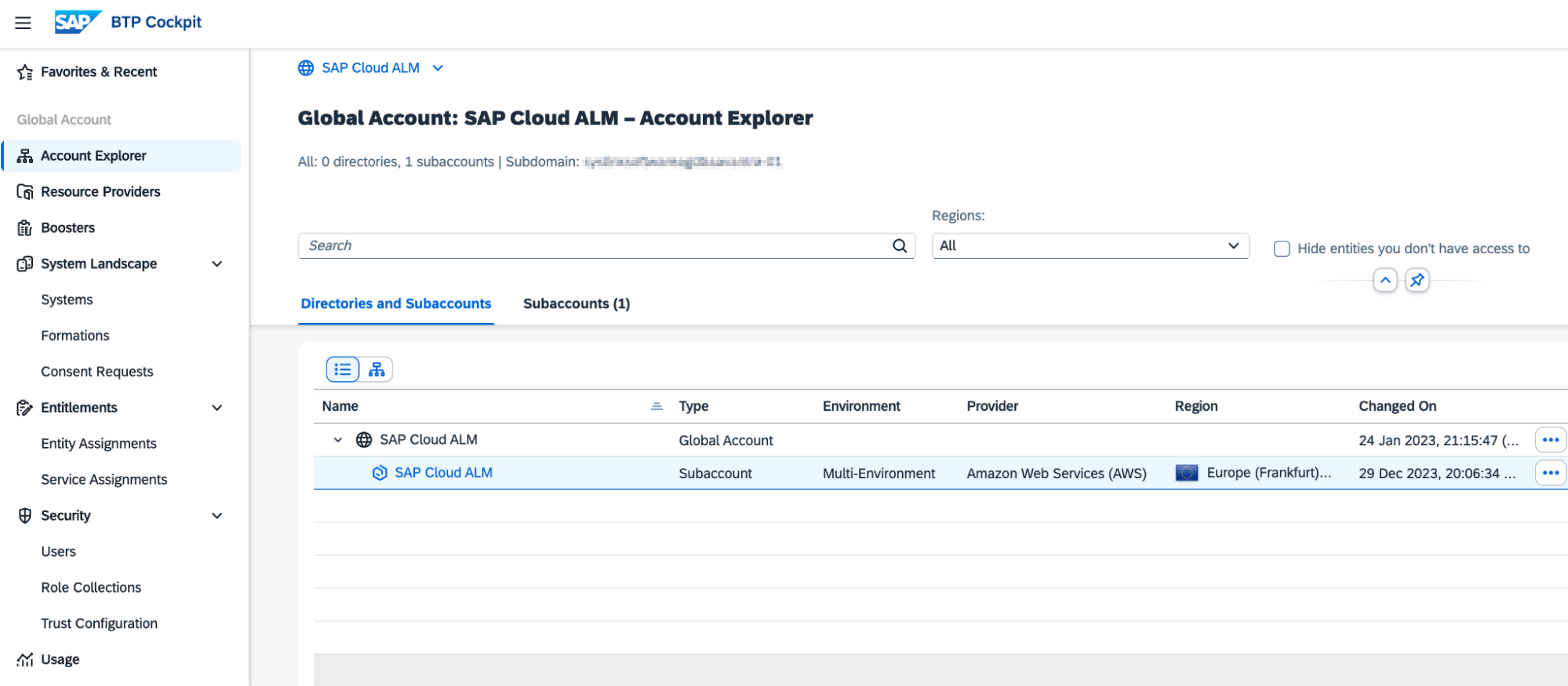
- Create a new instance binding of the SAP Cloud ALM API service in the subaccount. See Enabling SAP Cloud ALM APIs for more information.
The JSON of scopes required during the creation of the service instance is:
{
    "xs-security": {
        "xsappname": "<my-api-instance>",
        "authorities": [
          "$XSMASTERAPPNAME.calm-api.analytics.read",
          "$XSMASTERAPPNAME.calm-api.analytics.providers.read",
          "$XSMASTERAPPNAME.calm-api.projects.read",
          "$XSMASTERAPPNAME.calm-api.hm.read",
          "$XSMASTERAPPNAME.calm-api.itsm.attachements.read",
          "$XSMASTERAPPNAME.calm-api.itsm.attachements.write",
          "$XSMASTERAPPNAME.calm-api.itsm.personal.read",
          "$XSMASTERAPPNAME.calm-api.itsm.personal.write",
          "$XSMASTERAPPNAME.calm-api.itsm.read",
          "$XSMASTERAPPNAME.calm-api.itsm.write",
          "$XSMASTERAPPNAME.calm-api.landscape.read",
          "$XSMASTERAPPNAME.calm-api.logs.read",
          "$XSMASTERAPPNAME.calm-api.metrics.read",
          "$XSMASTERAPPNAME.calm-api.rum.read",
          "$XSMASTERAPPNAME.calm-api.sum.read",
          "$XSMASTERAPPNAME.calm-api.traces.read",
          "$XSMASTERAPPNAME.calm-api.demo-tasks.read",
          "$XSMASTERAPPNAME.calm-api.tasks.read",
          "$XSMASTERAPPNAME.calm-api.tests.read",
          "$XSMASTERAPPNAME.calm-api.integration-monitoring.read",
          "$XSMASTERAPPNAME.calm-api.bsm.read",
          "$XSMASTERAPPNAME.calm-api.defects.read",
          "$XSMASTERAPPNAME.calm-api.requirements.read",
          "$XSMASTERAPPNAME.calm-api.bm.read",
          "$XSMASTERAPPNAME.calm-api.jobs.read",
          "$XSMASTERAPPNAME.calm-api.exm.read",
          "$XSMASTERAPPNAME.calm-api.iep.read",
          "$XSMASTERAPPNAME.calm-api.csa.read"
        ],
        "oauth2-configuration": {
            "credential-types": [
                "binding-secret"
            ]
        }
    }
}
Replace <my-api-instance> with the name of your API instance.
You can remove scopes for ITSM (calm-api.itsm.*) if you do not ever want to integrate Avantra with SAP ITSM for cases, incidents or service requests.
ITSM integration will be available in a future Avantra release.
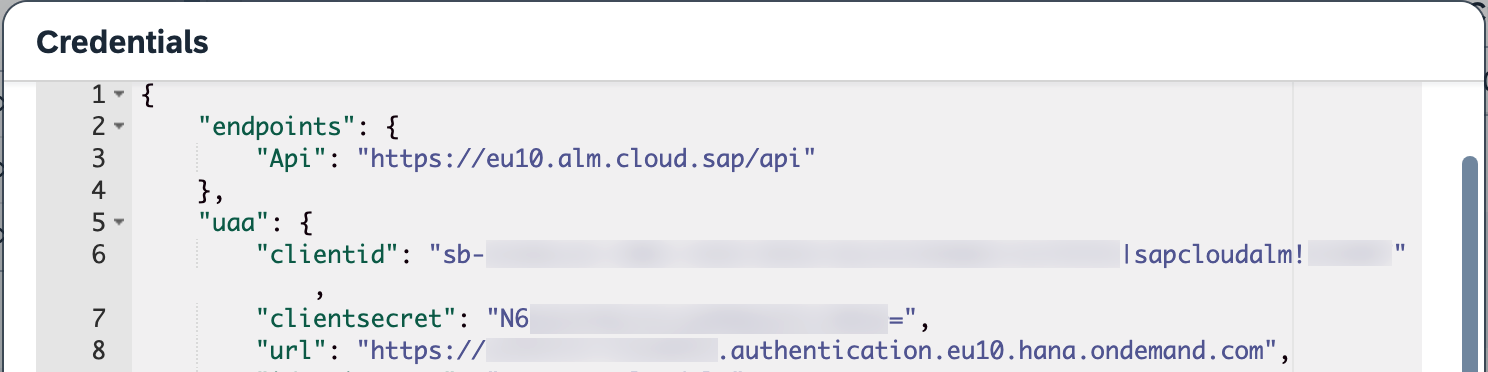
- Store important information from the service binding.
- (Optional) If preparing an ITSM integration, you can create destinations between CALM and SAP for Me by following the SAP Documentation: ITSM API Configuration documentation. The Configuration section is the only important section. An example of correct destinations is shown below:
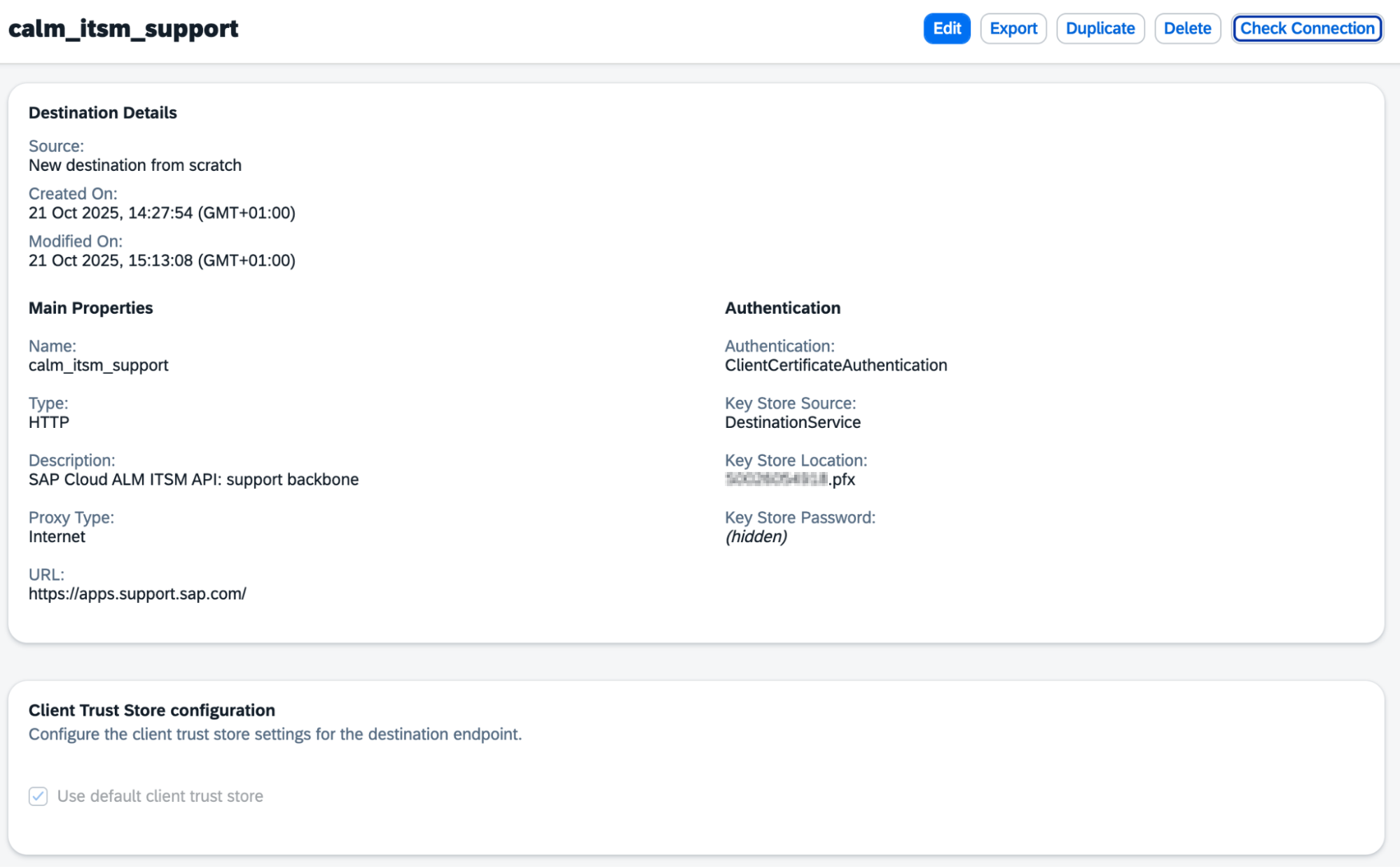
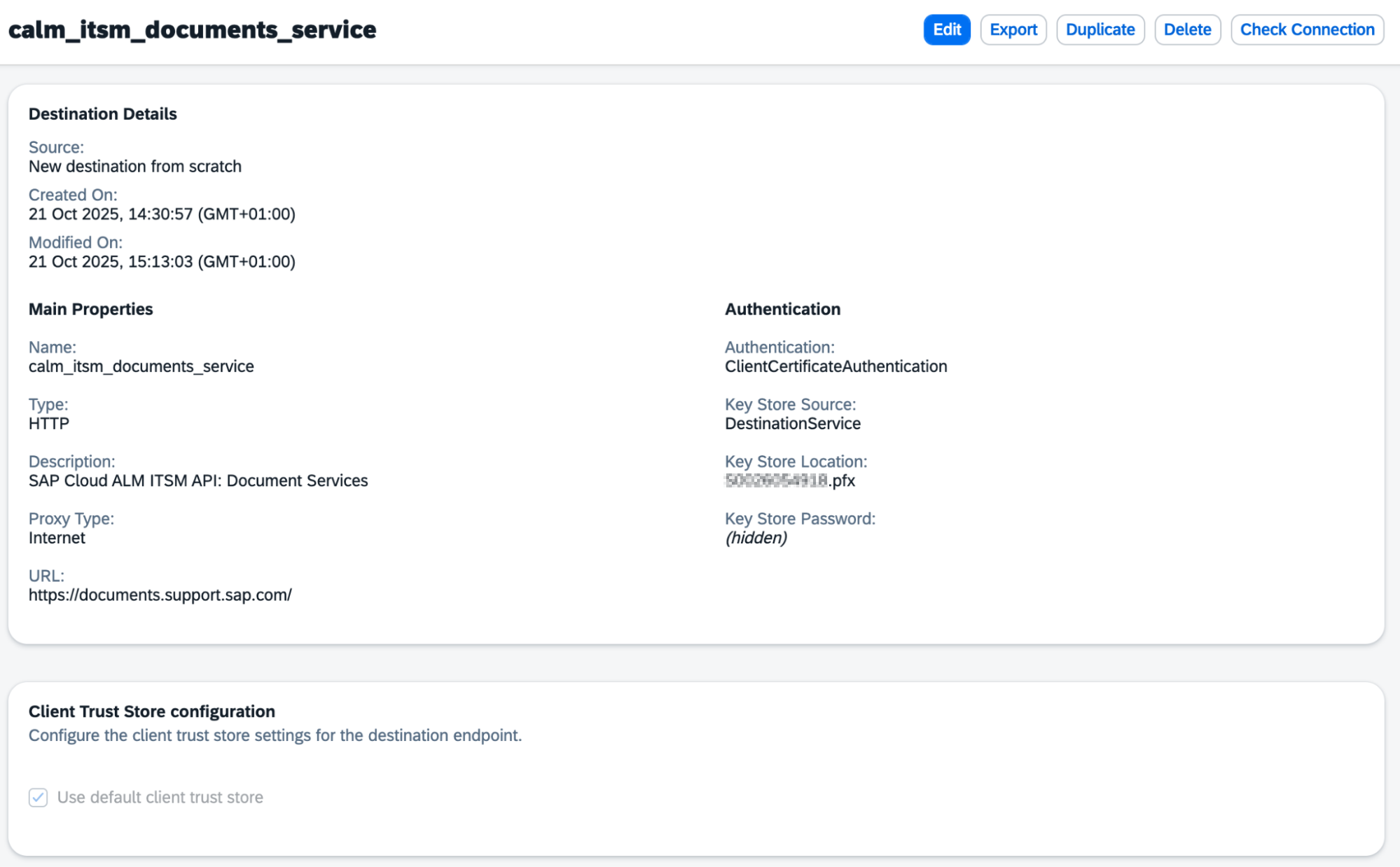
See SAP Note 2767159 - How to install an SAP Passport browser certificate in Chrome for information on how to get the .pfx file for ClientCertificateAuthentication.
Setup in Avantra
To add Cloud ALM to Avantra, in Avantra Classic UI:
- Navigate to System > Cloud Services.
- Click Add Cloud Service
- Select the Service Type - SAP Cloud ALM (CALM).
- Define a Service.
- Select a Customer.
- Select a System Role.
- Click New.
- Double-click the newly created service to open its Properties panel.
- Enter the following values from the binding created in CALM in the SAP Cloud ALM Info section:
- Select a monitoring server from the Monitoring Server dropdown. This should be a server that can access the CALM APIs.
- If required, select a Proxy.
- In the URL field, enter the URL from the identify zone found in
uaa.identityzoneand the first part of theendpoints.Api, including the final/but not including theapi. For example, if the uaa.identityzone isexample-clouldalmand endpoints.Api ishttps://eu10.alm.cloud.sap/apithen the final result is:https://example-clouldalm.eu10.alm.cloud.sap/.
- Click Apply to save the changes.
- In the Credentials tab, click the checkbox to allow editing of the SAP Cloud ALM API (OAUTH_CLIENT) information.
- Click the Edit icon to add the OAuth information.
- Define a Name. This is a free text field.
- Define a Client ID. This is the
clientidin CALM. - Define a Client Secret. This is the
clientsecretin CALM. - Define an Access Token URL. This is the
urlin CALM, withoauth/tokenat the end. For example,https://company-cloudalm.authentication.eu10.hana.ondemand.com/oauth/token. - Leave Scope blank.
- Click OK to save the credential.
- You can test the connection with the credential by clicking Test.
- Click Apply to save changes.
In the Avantra New UI:
- Navigate to System > Cloud Services.
- Click View New Version.
The Cloud Services page will open in the New UI. - Click Add New, then SAP Cloud ALM from the dropdown menu.
- Complete the following:
- Add a Name.
- Select a Customer.
- Select a System Role.
- Select a Monitoring Server. This should be a server that can access the CALM APIs.
- In the URL field, enter the first part of the
endpoints.Api, including the final/but not including theapi. For example,http://eu55.alm.cloud.sap/. - Fill in any optional fields as required.
- Click Test connectivity.
- If the connection is successful, click Continue. If the connection fails, click Reconfigure. Ensure that you have entered the correct Monitoring Server, URL and Customer.
- Click Create to add a new credential.
- Complete the following:
- Add a Name. This is a free text field.
- Define a Client ID. This is the
clientidfrom the binding created in BTP. - Define a Client Secret. This is the
clientsecretfrom the binding created in BTP. - Define an Access Token URL. This is the
urlcreated, withoauth/tokenat the end. For example,https://company-cloudalm.authentication.eu10.hana.ondemand.com/oauth/token. - Leave Scope blank.
- Click Test to test the credentials work.
- Click Continue to save the credential.
- The summary page will display all the information entered and the ALM_Connect check will show a successful connection in the Checks tab. Other checks are daily checks, therefore no results will be available until a check cycle has run.
Optionally, if you wish to prepare for an ITSM integration and map Avantra systems to SAP for Me systems, you need to set the correct SAP customer number on the Customer of the SAP Cloud ALM system in Avantra. You can find the customer number in Users & Contacts on SAP for Me.
To set in Avantra:
- Navigate to Administration > Customers.
- Double-click the customer to open its Properties panel.
- Enter the SAP Customer Number.
- Click Apply to save changes.
Mapping CALM systems to Avantra systems
Mapping CALM systems to Avantra systems can only be done in the New UI in Avantra. To access the New UI:
- Navigate to System > Cloud Services.
- Click View New Version.
The Cloud Services page will open in the New UI. - Double-click on the CALM system you want to map to Avantra systems.
- Click on the Mapping tab.
This tab displays all the systems in Avantra, and all the systems in the CALM instance. Systems that have no mappings will be displayed at the top of the list.
When an Avantra system is selected, the CALM systems will be sorted by highest matching possibility. You can select a CALM system and click the Map  icon to map the systems to each other.
Additionally, auto-mapping is possible by clicking Auto match. Avantra will map systems that have perfect matching data. It is recommended to do this.
You are able to search the mapping lists.
At the bottom of the tab is a list of all the mapped systems. You can unlink the systems by clicking the Unlink  icon.
icon.
Monitoring mapped systems
To extend the monitoring available on a mapped system in Avantra, you can use the custom check SAP_CLOUD_ALM_HEALTH_METRICS. This custom check allows you to add in metrics from your CALM instance to display as checks within the Avantra interface. You can interact with these metrics, in Avantra, as you would any built-in check.