Installation via the quick installer
This section describes how to install the Avantra Server on a Linux machine using the Avantra Quick Installer. Once installed you will have the following components available:
- Avantra Server
- Avantra Web User Interface
- Avantra Agent (for monitoring the local Avantra instance)
- PostgreSQL Database for the Avantra data
Installation requirements
To install and run Avantra from the quick installer you will need:
- An appropriately sized system (see the Sizing Guide)
- Logged in as either root or a sudo-capable user
- Internet access to download the quick installer and required packages
- Network access:
- Port 22 for SSH to run the quick installer
- Port 8443 for accessing the WebUI after installation
- Port 9050 to allow remote agents to communicate with Avantra
Performing the installation
To execute the quick installer you will need to a sudo-capable user or be logged in as root. The machine will also need internet access to download remote packages.
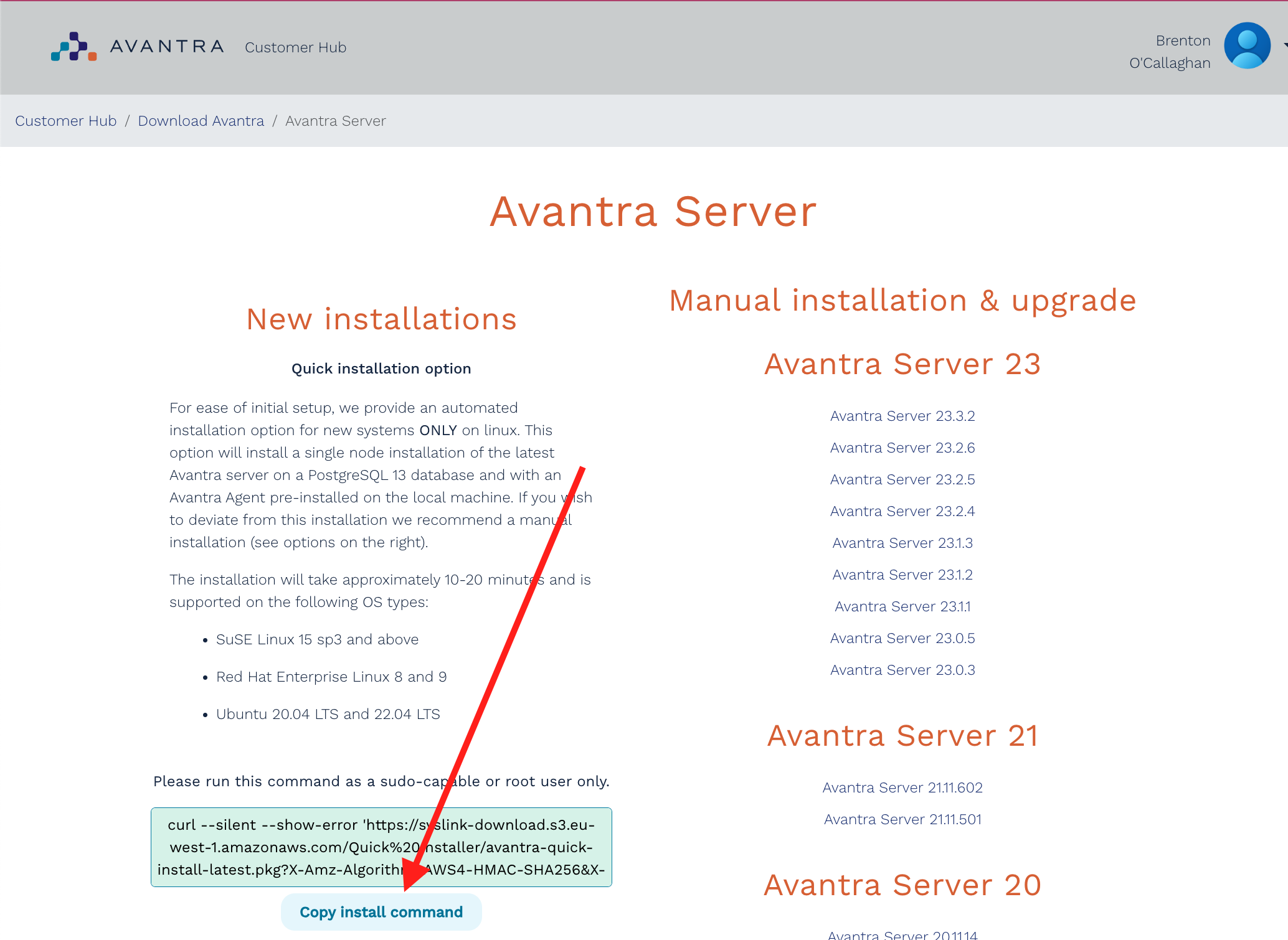
Go to the Customer Hub and log in using your user account. If you do not have an account please contact Avantra Support for access.
- Go to Download Avantra from the main page and select Download Avantra Server.
- On the left side you should see the section called
New InstallationsandQuick Installer. Here you should find a button called Copy Install Command to copy the full installation command to your clipboard.
- Next, go to your new Avantra machine where you must be logged in either as
rootor as a sudo-capable user, paste the command and then execute. - The installation can take anywhere from 7 to 20 minutes depending on the state of the system (how up to date it is, speed of internet access, etc.)
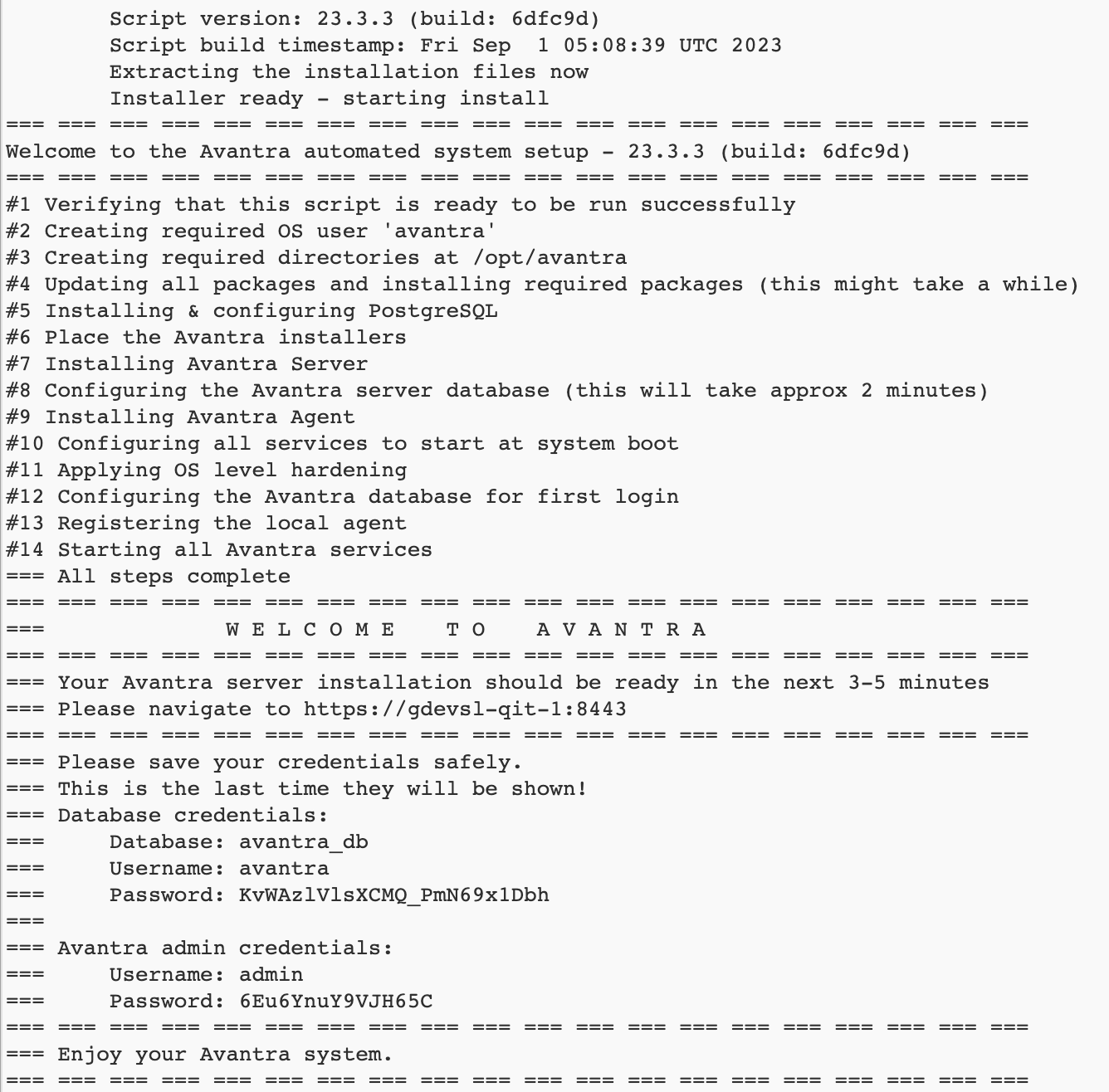
Make sure to save the result from the quick installer (from your terminal window) as it contains the randomly generated password for your database user as well as the main administrator randomly generated password for your Avantra system. If you do not make note of these items they cannot be recovered and you will have to start again.
- Finally, in your browser, navigate to the Avantra WebUI at
\https://10.0.0.1:8443(replacing the IP address10.0.0.1with either the hostname or IP of your new Avantra machine) and log in using the credentials you obtained from the quick installer output.
Installation information
Service names
System Service Names
| Service | Name | Usage | Purpose |
|---|---|---|---|
| Avantra Server | avantra-server | sudo systemctl stop avantra-server | Runtime for Avantra server |
| Avantra UI | avantra-ui | sudo systemctl stop avantra-ui | Runtime for Avantra WebUI |
| Avantra Agent | avantra-agent | sudo systemctl stop avantra-agent | Runtime for the local Avantra Agent |
| PostgreSQL Server | postgresql | sudo systemctl stop postgresql | Runtime for the PostgreSQL database |
Installed packages
Ubuntu
| Package | Name | Purpose |
|---|---|---|
| Java Runtime | openjdk-17-jre | Runtime for Avantra services |
| Ubuntu 22.04 PostgreSQL Database | postgresql-14 | Database for Avantra services |
| Ubuntu 24.04 PostgreSQL Database | postgresql-16 | Database for Avantra services |
RHEL
| Package | Name | Purpose |
|---|---|---|
| Java Runtime | java-17-openjdk | Runtime for Avantra services |
| PostgreSQL Database | postgresql-server | Database for Avantra services |
| PostgreSQL Client | postgresql | Client for accessing Database |
| policycoreutils-python-utils | policycoreutils-python-utils | Utility library used during correct setup of SELinux |
| policycoreutils-python | policycoreutils-python | Utility library used during correct setup of SELinux |
SUSE
| Package | Name | Purpose |
|---|---|---|
| Java Runtime | java-17-openjdk | Runtime for Avantra services |
| PostgreSQL Database | postgresql15-server | Database for Avantra services |
| PostgreSQL Client | postgresql15 | Client for accessing Database |
Users, location and ports
Avantra server/UI
| Home Directory | /opt/avantra/ |
|---|---|
| WebUI Port | 8443 |
| Agent Communications Port | 9050 |
| Service User | avantra |
Avantra Agent
| Home Directory | /opt/avantra/agent |
|---|---|
| Agent Communications Port | 9051 |
| Service User | avantra |
Database
| Installation Directory | As per OS package manager |
|---|---|
| Data Directory | /opt/postgres/data |
| DB Communications Port | 5432 |
| Service User | postgres |
Frequently asked questions
-
Can I install Avantra using the quick installer without root privileges?
No, you need to either be root or a sudo-capable user to use the quick installer. If you do not have root privileges then you must do a manual installation. -
Is the Avantra server hardened during installation?
Yes, but not all recommendations are applied (e.g. you can still execute commands at the OS level within automations). We recommend reviewing the Hardening Guide and configuring your system to match your organizational requirements. -
Is the Avantra Quick Installer available for Windows
No, please perform a manual installation. -
I forgot to copy the username and password from the quick-installer output, can I recover them?
No, you will have to start again as the passwords are not saved anywhere and are lost. To start again follow the procedure at the end of this page for resetting after a failed quick installation and then redo the whole quick installer.
Resetting after a failed quick install
This procedure should only be used if you want to destructively reset the current machine back to before Avantra was installed using the quick installer (QI). It should not be performed if there is any concern about data loss. Please review and understand these commands before using them.
Please NOTE before performing these steps that they are destructive and will destroy the database contents and any installed files in the Avantra directories in the filesystem.
DO NOT ATTEMPT TO USE THESE COMMANDS WITHOUT FULLY UNDERSTANDING THEM. THEY WILL CAUSE DATA LOSS IF USED IMPROPERLY.
# Stop and disable all Avantra services.
sudo systemctl stop avantra-server
sudo systemctl disable avantra-server
sudo systemctl stop avantra-ui
sudo systemctl disable avantra-ui
sudo systemctl stop avantra-agent
sudo systemctl disable avantra-agent

# Remove the Avantra installation files
sudo rm -Rf /opt/avantra

# Drop the database that had been created.
sudo runuser -l postgres -c "psql -c \"drop database avantra_db;\""